Your Cuntas Míosúil,
made simple
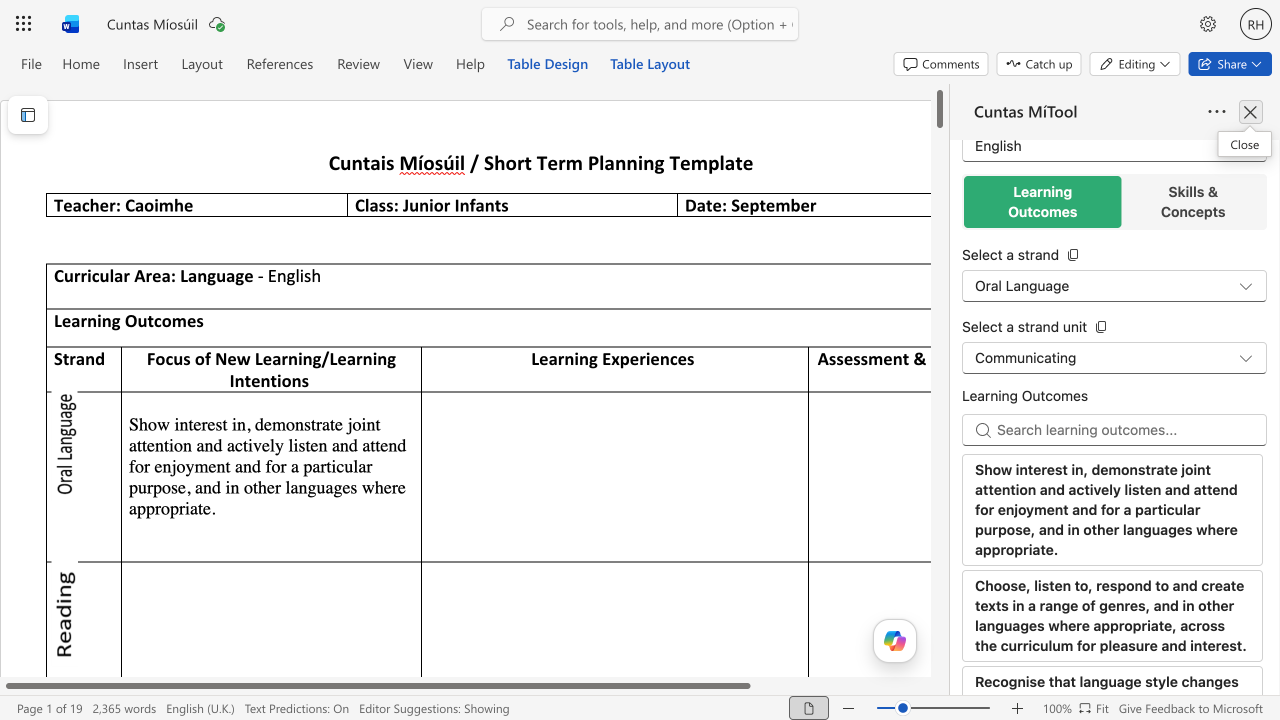
Cuntas MíTool helps Irish primary school teachers plan their monthly Cuntas Míosúil. Browse the full Primary School Curriculum, find learning outcomes, and insert them straight into your planning documents. No copying, no pasting, no switching tabs.
Available as a Word Add-in for Windows, Mac, and Word Online.
Born from a developer watching his Irish primary school teacher wife spend her Sundays planning!
Everything you need for your monthly planning
Stop searching through PDF documents and spreadsheets. The full Irish Primary School Curriculum is at your fingertips, right inside your document.
Full Curriculum Coverage
Every class from Junior Infants to Sixth Class. Every subject. Every strand, strand unit, learning outcome, and skill.
Search & Filter
Drill down by class, subject, and strand, or search across learning outcomes and skills to find exactly what you need.
One-Click Insert
Click a learning outcome or skill and it goes straight into your document at the cursor. No copying, no pasting.
Works Inside Word
No new apps to learn. Cuntas MíTool lives in a panel beside your document, right where you do your planning.
Sign in with Microsoft
Use your existing school Microsoft account. No new passwords, no extra accounts to manage.
Windows & Mac
Works on Word for Windows, Word for Mac, and Word for the Web. Plan your lessons from any device.
Get started in minutes
Cuntas MíTool is available on the Microsoft Marketplace. Works on Word for Windows, Mac, and Word Online.
7-day free trial. Then €4.99/month or €20/year.
IT Admin?
Deploy Cuntas MíTool to all teachers in your school via the Microsoft 365 Admin Center. Go to Settings → Integrated Apps, search for Cuntas MíTool, and deploy to your users. The add-in will appear automatically in teachers' Word ribbon.
Need a feature?
Please write to us at contact@cuntasmitool.ie and we'll try our hardest to fulfil your request!